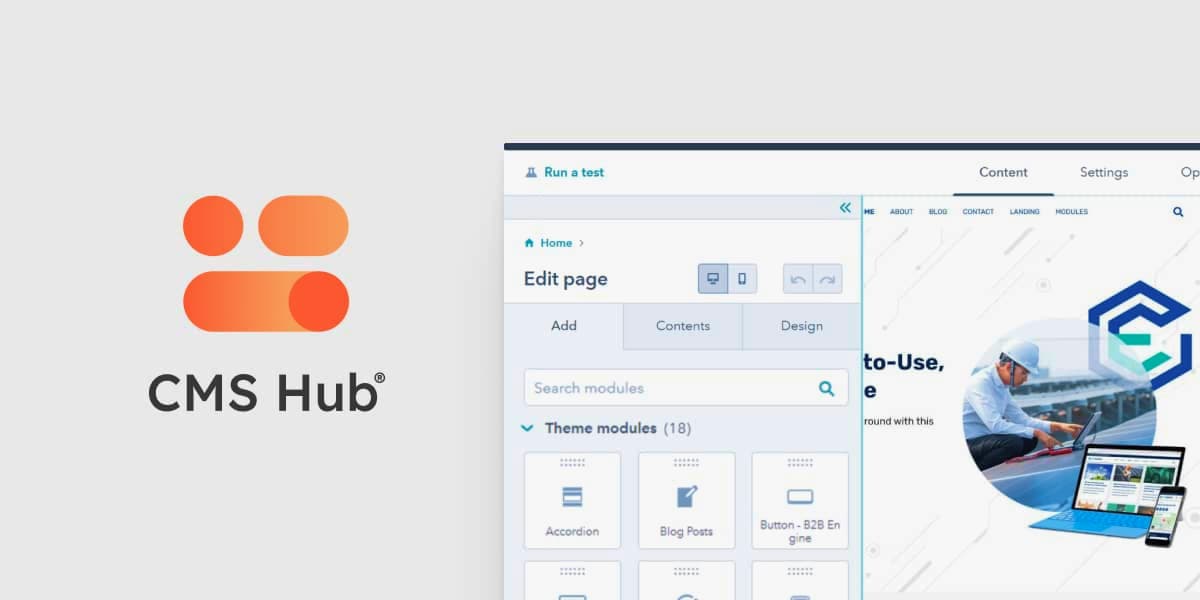
With over 133,000+ sites actively using HubSpot Content Hub — its easy to use, cloud-based content management system — it’s well worth considering this platform for your next website redesign or rebuild project. The new Content Hub empowers your entire team (not just your development team) to create and optimize your website content in an accessible way.
As a HubSpot Platinum Partner, we have experienced the Content Hub's invaluable benefits firsthand. They’ve helped both our clients and our own business time after time:
- Easy updates and built-in security — With the Content Hub, all of your maintenance needs are taken care of. Not only that, you’re also getting a built-in security solution complete with Firewall, SSL Certificate, global CDN and 24-7 monitoring.
- Reporting and analytics — All the data you need is centralized in one place. Website traffic analytics give you key insights including (but not limited to) traffic sources, device types, and visitor locations.
- Powerful CRM integration — HubSpot offers a strong marketing platform and CRM (Customer Relationship Manager). The deep integration with the Content Hub enables you to track and manage all your contacts and personalize their experience through every phase of your sales lifecycle.
- Drag and drop page and blog editing — The page and blog build interface offers users an intuitive, drag-and-drop visual page building experience. This gives your team the freedom to make quick content updates on the fly without the need for experience in website code or development.
- Theme options — There’s no shortage of website themes in the HubSpot marketplace: you can browse a vast library of paid and free options to streamline your design process. We developed our own Pro theme that takes all the lessons we’ve learned for our B2B clients over the years and sets you up for success with a great kit of parts. Learn more about the B2B Engine Pro
Looking for more information?
We put together a complete buyer’s guide for everyone considering going with the HubSpot Content Hub. Check it out here!
9 Great Tips for Migrating to HubSpot Content Hub
Think HubSpot will be a good fit as the home for your new website? Here are 9 key steps to take to smoothly and efficiently shift your existing site to the Content Hub.
How to migrate to HubSpot Content Hub
1. Prepare your content
It’s important to know what pages and website content need to be in the new platform. To get a clear picture of everything under the hood, use a tool to generate an XML sitemap. This will give you a full list of URLS and links to content you may not have been aware of.
2. Don’t forget SEO
Make sure to review Google Search Console and Google Analytics. You want to make sure you don’t leave out any pages that are currently helping you to drive organic visitors to your website.
3. Contact HubSpot with a request to migrate
Once you have defined the scope of the website project (including the definitive content to be moved and the theme you will be using), reach out to HubSpot to get the migration going. They can set you up with a dedicated partner agency as needed to get you the expertise you need for the project.
4. Review and approve the list of URLs
Take another careful look at the list of pages that will be migrated over. Your HubSpot representative will also have some guidance if there is any custom development needed, or any functionality that can’t be replicated. You will have to approve the migration gameplan before the project starts.
5. Submit payment for migration
Once you have approved the list of contents and details of the migration plan, you can make the payment to move the process forward. HubSpot prices migrations per page; check their site for current rates. It typically takes 2 to 4 weeks.
6. Perform the migration
Now it’s time for you to relax while the migration team works their magic. They will be taking the approved content and recreating it in your new HubSpot environment in accordance with the approved project scope.
7. Review the migrated content
Before your site is ready to go live, you’ll have the opportunity to review and provide feedback on the migration work done to make sure everything meets your expectations. (Hint: don’t skimp on this vital step.)
8. Update SEO settings
Make sure all of your metadata is in place, including your page titles and meta descriptions. Taking this into account early on will help you to make educated decisions when updating the SEO settings for the pages in the new environment.
9. Activate or connect your domain
Time for launch! You can connect your domain using your HubSpot account. We recommend leaving this to someone who has a good understanding of how DNS works to ensure there are no issues with publishing.
A Successful HubSpot Website Migration Case Study: Lambda Research
Learn how our work with Lambda Research helped them to achieve a fresh look and feel, an easy to use website experience, and increased efficiency across their organization.
Need help with your HubSpot Migration? We’re here for you.
Our team offers full migration services and support. We understand how overwhelming a redesign or re-platforming process can be. Leave it to us to be your guide. Chat with our team today to learn more about how we can help you.